
Prompt Variable How To Article
Public
Text
0
Owner & Editor:
Edited: over 1 year agoCreated: over 1 year ago
Using the Prompt Variable Template Editor
This guide will help you understand each feature of the Prompt Variable Template editor, so you can create powerful and reusable components for your AI prompts.
Think of a Prompt Variable Template as a smart snippet that you can design once and use in many different AI prompts. It not only defines a placeholder (a variable) but also lets you specify extra text that gets added to your main prompt, either at the beginning or the end.
Here's how to use the different parts of the editor:
1. Defining Your Variable's Core Details
This section is where you set up the fundamental properties of your variable.

Name:
- How to use: Give your variable a clear and unique name (e.g.,
Tone,Audience,FormatType). - Why use this: This is the primary identifier for your variable. You'll use this name when you want to include this variable in your "Text to Add to Prompt" (see below) and when you assign a value to it in your main AI prompt. A good name makes your templates easy to understand and use.
Type:
- How to use: Select the type of variable (e.g., text, number, list, a special 'Connect' type).

Text:
- This is the most versatile type. Put any text you want in here.

Select
- Create a list of values that can be selected from a list.
- Single select options always show a write in answer so you can type in any value if it is a one off and shouldn't be in the dropdown select items.
- You can set the select to be multi select which makes it so the values are comma separated when injected into the prompt.
- You can reorder all the values in the select

Slider:
- This is great for set range of numbers.
- Specify a min, max, and step amount (how much each value +/- when you move the slider)

Connect:
- Here is where you can connect other data sources (Text and Code content types) from within the application.
- You can also change the search settings for when you want to replace the connected source from the variable. This is great for when you want to have a refined set of results to select from.
In the below image I have chosen the default selected text type to be my Alex Hormozi marketing consultant.

And here for my search filters, I have created multiple marketing consultants all with the tag "consultant" so I added that to the tags to automatically filter results when I want to change the connected data.

You can view what your search results will look like to make sure you have all the right filters selected by hitting "Preview Search Results".

Default Value (value):
- How to use: Enter a value that this variable should have if no other value is specified when the template is used in a prompt. For a
Tonevariable, a default might be "neutral". - Why use this: This ensures your prompt can still function even if a specific value for this variable isn't provided at the moment of use. It also sets a common or recommended starting point. You'll see this default value reflected in the "Default variable value passed to the prompt" section, often displayed using a
VariableViewer.
- How to use: Enter a value that this variable should have if no other value is specified when the template is used in a prompt. For a
2. Crafting the "Text to Add to Prompt"
This is where you define the actual text snippet that your template will contribute to the main AI prompt at the time of importing.
It should include the Variable Name, usually I will a descriptive message before putting the variable in (eg. Here is the person I want you to emulate ${Person to emulate}).
- Positioning Your Template's Text
- "Add text to the start or end" Toggle Buttons: This will either put the "Text to Add to Prompt" at the start of end of the prompt that this Prompt Variable is added to.
Here is an example of what I want the text to add to prompt looks like.

Here is an example from within an AI prompt that I select this variable we created:
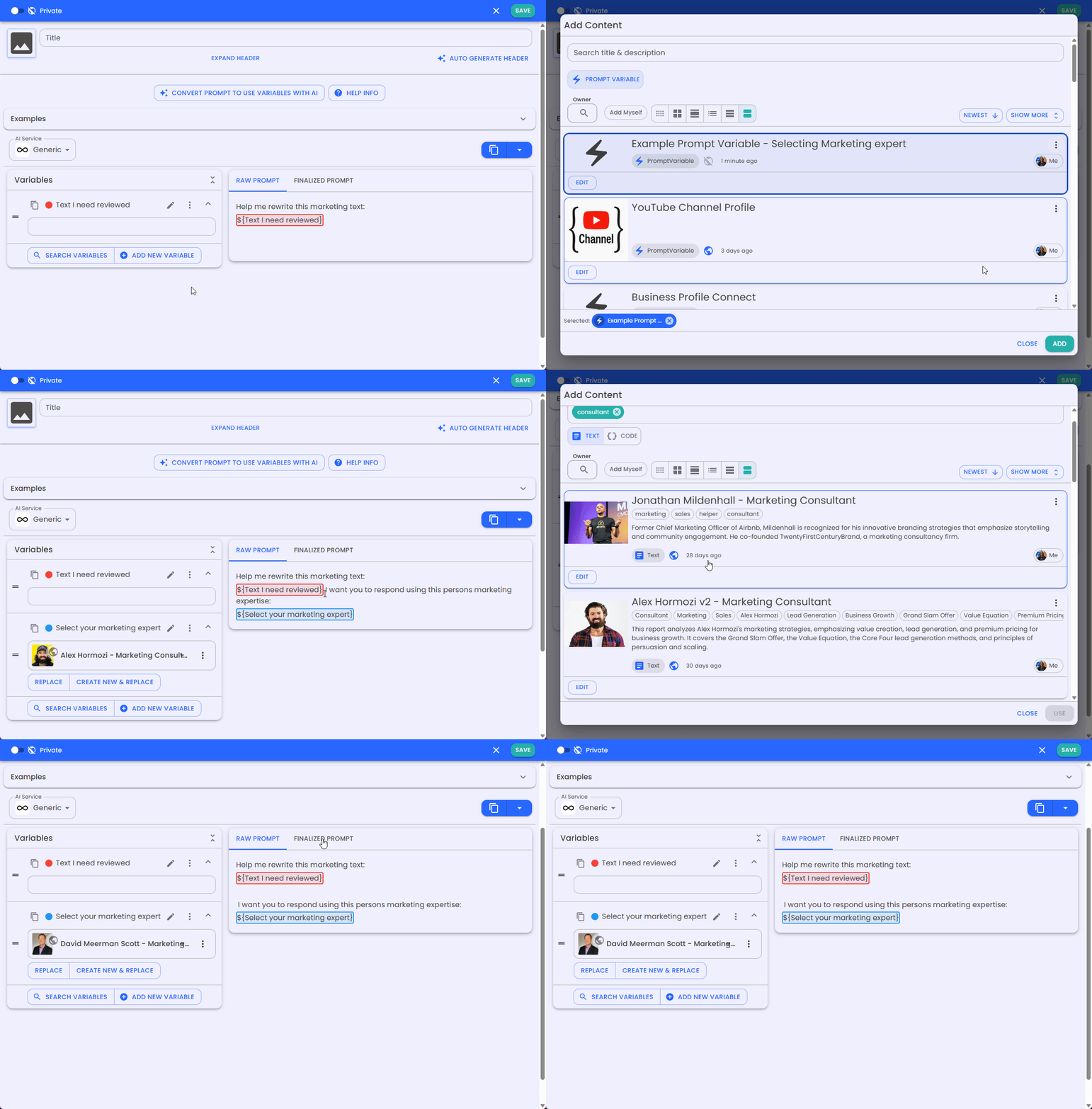
By thoughtfully configuring these options, you can create highly effective Prompt Variable Templates that make your AI prompting more modular, powerful, and easier to manage!
Create an account to create public content for free!
With an account you can:
Organize your work by saving anything to your private dashboard
Copy any page you can see
Subscribe to get in app notifications changes of pages
Create your own curated searches for content you care about
Follow others
View history of what you have created, updated, or viewed
Upgrade to Pro!
Limited time offer
When signing up for a year, I will work with you for an hour to create prompts specific for your needs!Add specific people to edit or view your content
Use much higher AI limits plus advanced tools for prompts, pages, and apps.
Connect compatible external AI tools to the context you save in MyiWorlds.